PlayDash app Malaysia.
Set up your phone.

Open PlayDash in your browser. Choose Android or iPhone for home screen setup and help when a page won’t load.

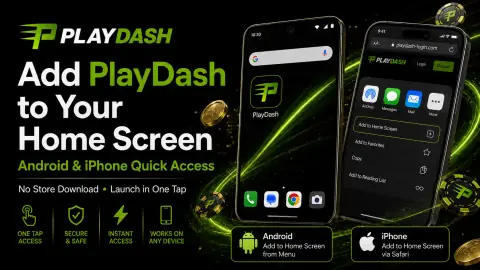
Android and iPhone screens showing how to add PlayDash to the home screen

Set up PlayDash on your phone

The steps quote each browser maker's own help pages, so they describe the browser, not PlayDash. Menus move between versions; if a label differs slightly, look for the closest match in the same menu.

Chrome on Android: add PlayDash to your home screen

  1. Open Chrome and go to PlayDash using the Log in button on this guide.
  2. On the right of the address bar, tap More ⋮.
  3. Tap Install and create shortcut, then Install.
  4. Follow the on-screen instructions. The icon appears on your home screen.

Source: Google Chrome Help, “Use web apps”, checked 16 October 2026.
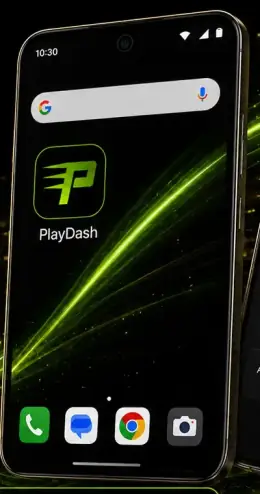
Android phone home screen with a PlayDash shortcut icon next to the Chrome app

Samsung Internet on Galaxy phones: save PlayDash as a bookmark

Samsung's newer support pages call the app Samsung Browser. Its help pages we checked explain bookmarks and clearing data, but not a home screen shortcut, so we only repeat what Samsung documents.

  1. Open Samsung Internet and go to PlayDash from the Log in button on this guide.
  2. Tap the bookmark icon (the star) to save the page.
  3. Open the bookmark list from the star in the bottom toolbar whenever you need it.

Prefer an icon on the home screen? Open PlayDash in Chrome on the same phone and follow the Chrome steps.

Source: Samsung support, “Use bookmarks in Samsung Browser”, checked 16 October 2026.

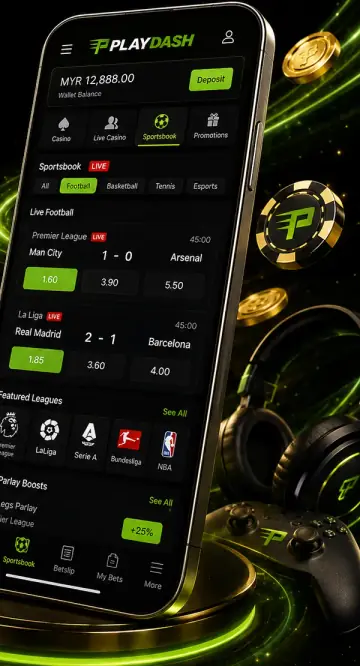
PlayDash sportsbook screen on a phone with live football odds and parlay boosts

Safari on iPhone: add PlayDash to your Home Screen

  1. Open Safari and go to PlayDash using the Log in button on this guide.
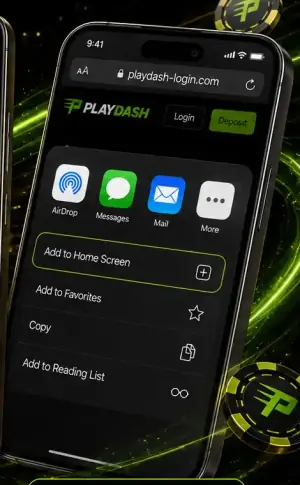
  2. Open the Share menu. Depending on your tab layout it sits in the toolbar or inside the toolbar's menu.
  3. Scroll down the list of options and tap Add to Home Screen. If it is missing, scroll to the bottom, tap Edit Actions and add it.
  4. Optionally turn on Open as Web App, then tap Add.

The icon only appears on the iPhone where you add it.

Source: Apple iPhone User Guide, “Bookmark a website in Safari”, checked 16 October 2026.

iPhone Safari share sheet with the Add to Home Screen option highlighted for PlayDash

How PlayDash works on a phone

PlayDash is built as a mobile-optimised web app. You open it in the browser you already have, sign in with your phone number or email, and the site adapts to the screen. For quick access you can put an icon on your home screen that opens it directly.

About APKs and app stores

An official native app, APK or store listing on Google Play or the App Store is not confirmed in the information we hold, and none is needed to play. Be careful with APK files shared in chats or on download sites — we cannot vouch for them.

For a longer explanation of browser play, see the PlayDash mobile browser guide.

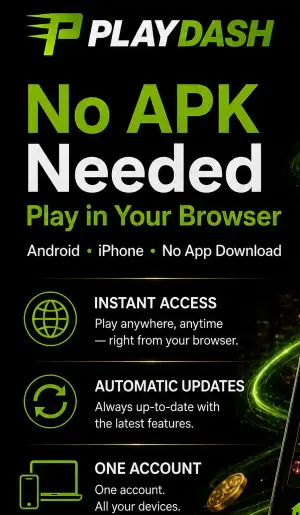
PlayDash graphic explaining browser play on Android and iPhone without an APK download

Shortcut, bookmark or APK: what you actually get

“PlayDash app” can mean three different things. Here is how they compare.

Swipe sideways: this table continues to the right

Ways to reach PlayDash on a phone
Option What it is Updates Our view
Home screen shortcut An icon that opens the PlayDash website Nothing to update; the website changes on its own Recommended for quick access
Browser bookmark A saved link inside the browser Nothing to update Fine; one extra tap
APK from a chat or download site An app file of unknown origin Unknown Not confirmed as official; avoid

When PlayDash won’t load on your phone

Start with the simple fixes, then clear cached files if the page still looks wrong. Clearing cookies signs you out of websites, so have your login details handy.

Blank or endlessly loading
Reload; switch between Wi-Fi and mobile data; update the browser.
Layout broken or out of date
Clear cached images and files with the steps below.
Login keeps looping back
Delete cookies and site data, then log in again.
Shortcut opens an unfamiliar page
Remove it and add it again from the Log in button here or the official Telegram channel.
“Not available in your region”
PlayDash is not offered in England, Scotland, Wales, Northern Ireland, Russia, India, USA.
Still stuck?
The PlayDash login help covers account-side causes, and Live Chat can check your account.

Clear cache and cookies, by browser

Chrome (Android)

  1. Open Chrome and tap More ⋮ at the top right.
  2. Tap Delete browsing data.
  3. Tap More options, select Cached images and files and Cookies and site data, then tap Delete data.

Source: Google Chrome Help, “Delete browsing data in Chrome”, checked 16 October 2026.

Samsung Internet

  1. Open the app and tap More options (three dots).
  2. Tap Settings, then Personal browsing data, then Delete browsing data.
  3. Select Cookies and site data and Cached images and files, tap Delete data, then Delete.

Source: Samsung support, “Clear the history, cache, and cookies in Samsung Browser”, checked 16 October 2026.

Safari (iPhone)

  1. Go to Settings, tap Apps, then Safari.
  2. To keep your history: tap Advanced → Website Data → Remove All Website Data → Remove Now.
  3. To clear everything: tap Clear History and Website Data, choose the timeframe, then Clear History.

Source: Apple Support, “Delete your Safari history, cache, and cookies on iPhone”, checked 16 October 2026.

PlayDash mobile FAQ

About apps, APKs, browsers and shortcuts.

Is there an official PlayDash app or APK?

An official native app, APK or Google Play / App Store listing is not confirmed in the information we hold. PlayDash runs as a mobile-optimised web app in your browser, and no APK is needed to play.

Is a home screen shortcut the same as an app?

It opens the PlayDash website from an icon, like an app would, but nothing is installed from a store. Updates happen on the website itself.

Which browser should I use?

Chrome or Samsung Internet on Android and Safari on iPhone all open PlayDash. Keep whichever you use up to date.

Someone sent me a PlayDash APK file. Should I install it?

We would not. No official APK is confirmed, and app files from unknown sources can carry malware. Open PlayDash in your browser instead.

My shortcut opens an old or strange page. What happened?

The saved address may be out of date. Delete the shortcut, open PlayDash from the Log in button on this guide or the official Telegram channel, and add the shortcut again.